
Conditional Disclosures in Assette allow users to automatically display specific disclosure text based on certain conditions, such as account attributes or output variables. This functionality ensures that relevant disclosures appear only when specific criteria are met, providing targeted and appropriate information for different contexts within reports and presentations.
Creating a Conditional Disclosure #
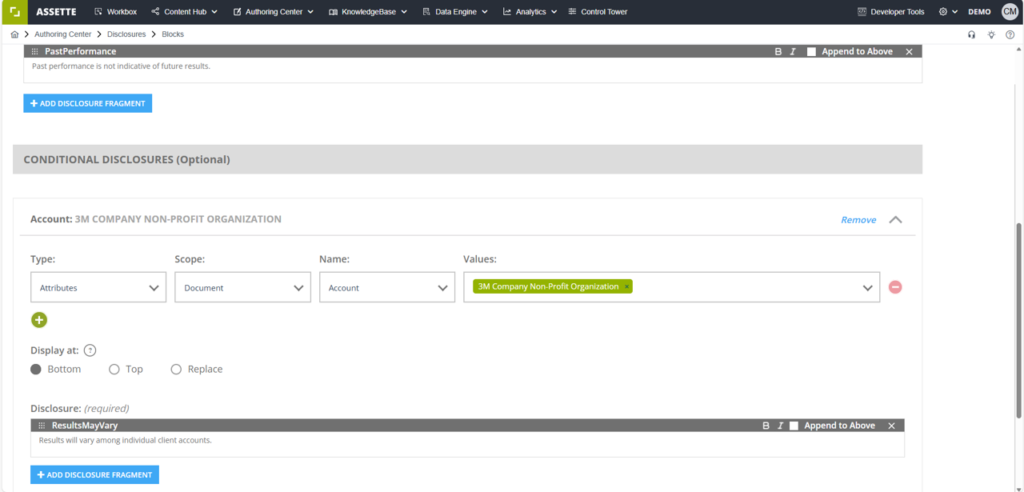
To create or edit Conditional Disclosures, users must first access the Disclosure Blocks interface within the Authoring Center. Navigate to Authoring Center > Disclosures > Blocks to access the disclosure management interface. This area provides access to all existing disclosure blocks and the ability to create new ones.
From the Disclosure Blocks interface, users can either create a new disclosure block or edit an existing one. When creating a new block, the system will provide a template that includes both the Main Disclosure section and the Conditional Disclosures section. When editing an existing block, all current configurations will be visible and available for modification.
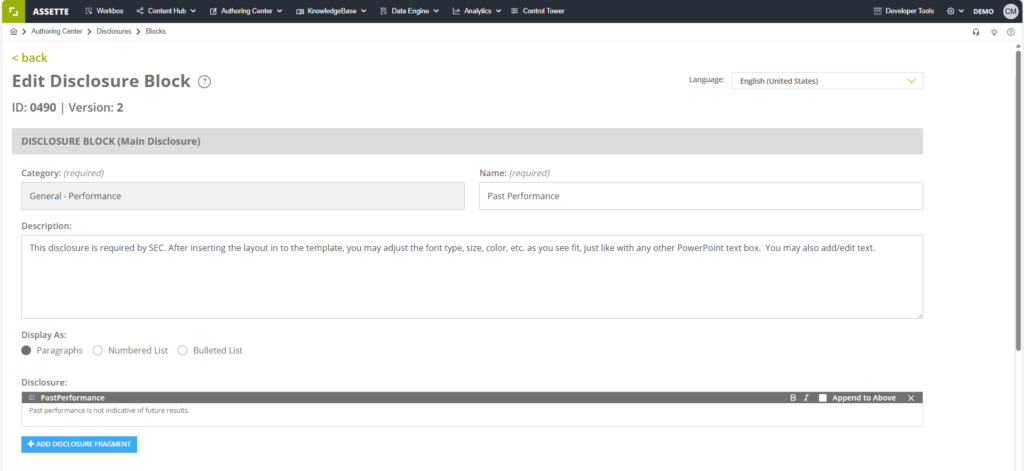
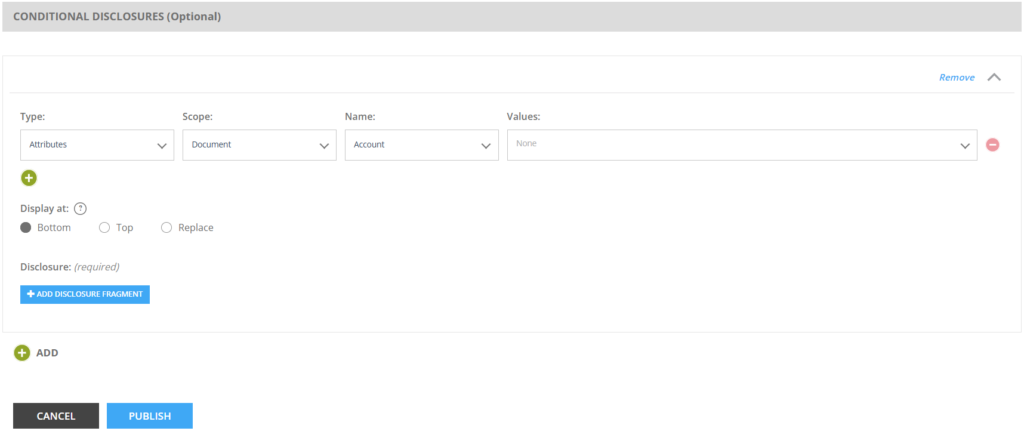
Within the disclosure block editor, locate the Conditional Disclosures section. This section appears below the Main Disclosure area and contains all conditional logic and associated disclosure fragments. To begin adding conditional content, click the Add button within the Conditional Disclosures section.

The Main Disclosure section at the top of the editor contains content that will always be displayed, regardless of any conditional logic. This section can be left blank if the entire disclosure should be conditional, meaning that only the disclosure fragments within the Conditional Disclosures section will be subject to conditional display rules. This flexibility allows for completely conditional disclosures or combinations of static and conditional content.
Adding Disclosure Fragments #
After clicking Add in the Conditional Disclosures section, users can begin configuring the conditional disclosure fragment. Each conditional disclosure consists of one or more disclosure fragments and the conditions that determine when those fragments should be displayed. Users can add multiple fragments to a single condition by clicking Add Disclosure Fragment, allowing for complex conditional content that may include multiple paragraphs or sections of text.
To manage existing disclosure fragments, users can remove individual fragments by clicking the x icon on the desired fragment. This removes only the specific fragment while preserving the condition and any other fragments associated with that condition. To remove an entire conditional disclosure group, including all associated fragments and the condition itself, click the Remove button for that conditional disclosure section.
Configuring Condition Types #
When setting up conditions for disclosure display, users must select the type of condition that will trigger the disclosure. The system supports two primary condition types: Attributes and Output Variables. Each type serves different purposes and responds to different aspects of the content generation process.
Attribute conditions are based on account-specific information that is stored in the Account Master. These conditions allow disclosures to appear based on characteristics of specific accounts, such as account type, investment strategy, or other account-level attributes. Attribute conditions are inherently document-specific because account information applies to the entire document rather than individual pages within a document.
Output Variable conditions respond to parameters that are set during the content generation process, such as currency settings, date ranges, or other dynamic variables that may change based on user selections or system configurations. These conditions provide flexibility for disclosures that need to respond to presentation parameters rather than account characteristics.
Setting Condition Scope #
The scope setting determines where the system checks for the specified condition and how broadly the disclosure will be applied. Users can select between Document scope and Page scope, depending on the nature of the condition and the desired disclosure behavior.
Document scope means that if the specified condition appears anywhere within the document, the disclosure will be displayed according to the configured placement rules. This scope is particularly useful for account-based conditions where the disclosure should apply to the entire document based on account characteristics.
Page scope limits the condition evaluation to individual pages, meaning that the disclosure will only appear on pages where the specific condition is present. This scope provides more granular control over disclosure placement and is useful for conditions that may vary between different pages within the same document.
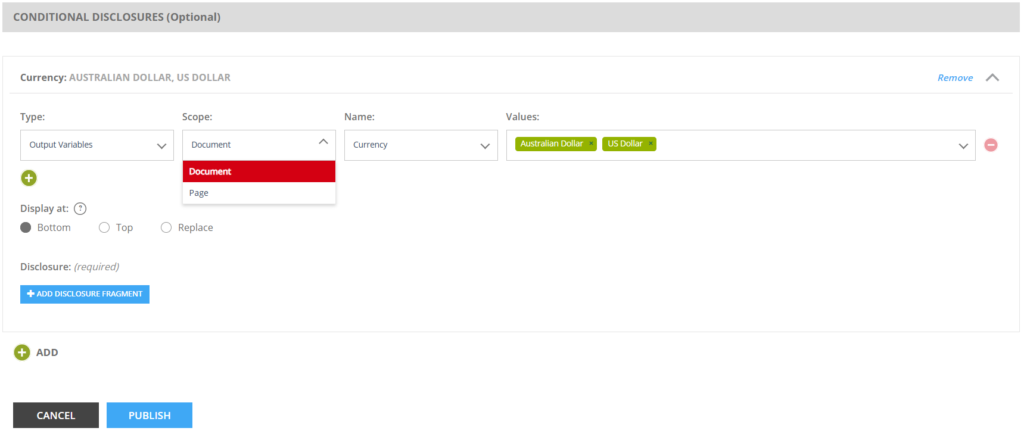
It is important to note that only Document scope can be selected for Attribute conditions, as account information is document-specific rather than page-specific. Output Variable conditions can use either Document or Page scope, depending on the intended behavior.
Defining Condition Parameters #
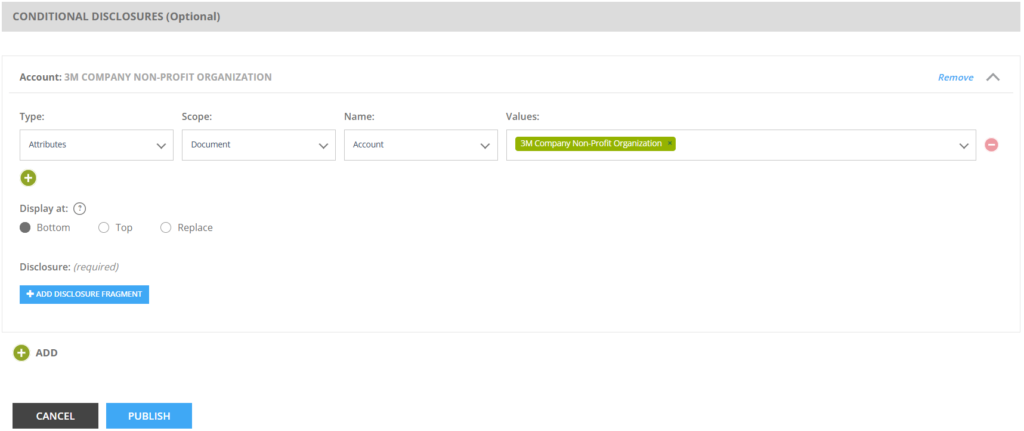
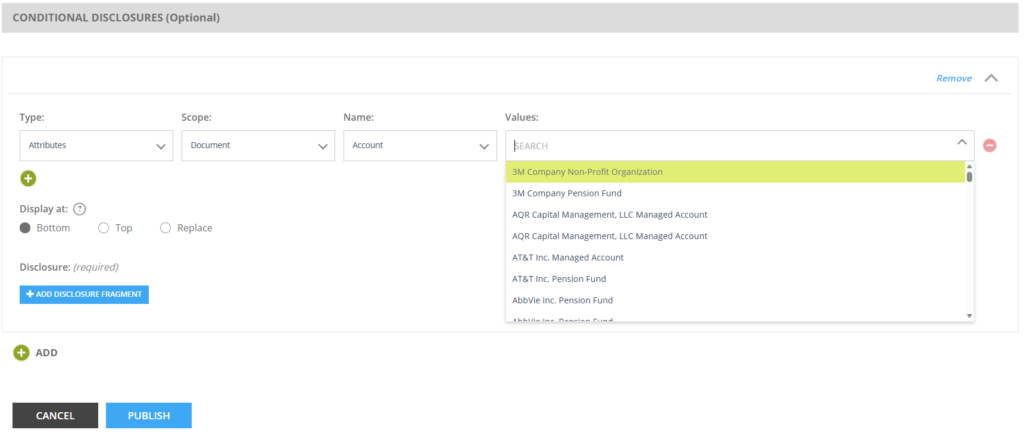
Once the condition type and scope are selected, users must specify the name and value that will trigger the disclosure. This involves selecting the specific attribute name or output variable name and defining the value that must be present for the condition to be satisfied.
For Attribute conditions, users select the account attribute name and specify the value that should trigger the disclosure. For example, users might configure a condition where the attribute name is “Account” and the value is “3M Company”, causing the disclosure to appear whenever content is generated for the 3M Company account.
For Output Variable conditions, users select the relevant parameter name and specify the value that should trigger the disclosure. This might include conditions such as currency settings, time periods, or other parameters that affect content generation and presentation.
Configuring Disclosure Placement #
After defining the condition parameters, users must specify where the conditional disclosure should appear in relation to the Main Disclosure content. The system provides three placement options: Top, Bottom, and Replace. These placement options determine how the conditional content interacts with any static content in the Main Disclosure section.
Top placement positions the conditional disclosure above any content in the Main Disclosure section. Bottom placement positions the conditional disclosure below any content in the Main Disclosure section. Replace placement substitutes the conditional disclosure for any content in the Main Disclosure section, effectively overriding the static disclosure content when the condition is met.
The placement setting refers specifically to the position relative to the Main Disclosure content, not the overall placement of the disclosure within the document or page. The actual positioning of the disclosure block within the document structure is determined by how the disclosure block is incorporated into templates and content layouts.
Adding Multiple Conditions #
Users can create complex disclosure logic by adding multiple conditional disclosure sections within a single disclosure block. To add a new condition, click Add in the Conditional Disclosures section again. This creates a separate conditional section with its own condition parameters and associated disclosure fragments.
Multiple conditions operate independently, meaning that each condition is evaluated separately and the associated disclosure fragments will appear based on their individual condition parameters. This allows for sophisticated disclosure management where different content appears based on various combinations of account attributes and output variables.
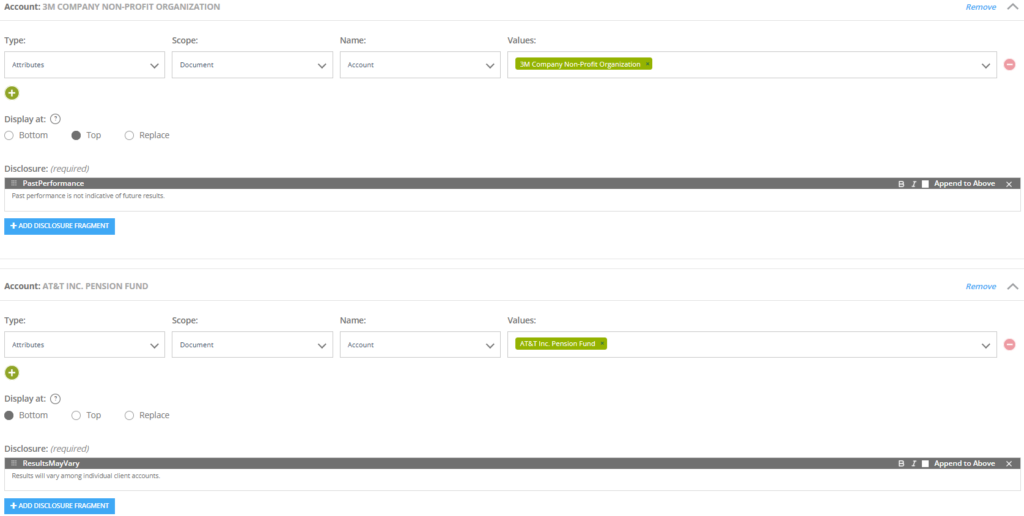
When multiple conditions are satisfied simultaneously, each qualifying conditional disclosure will be displayed according to its configured placement rules. The system processes conditions in the order they are defined within the disclosure block configuration.
Publishing and Implementation #
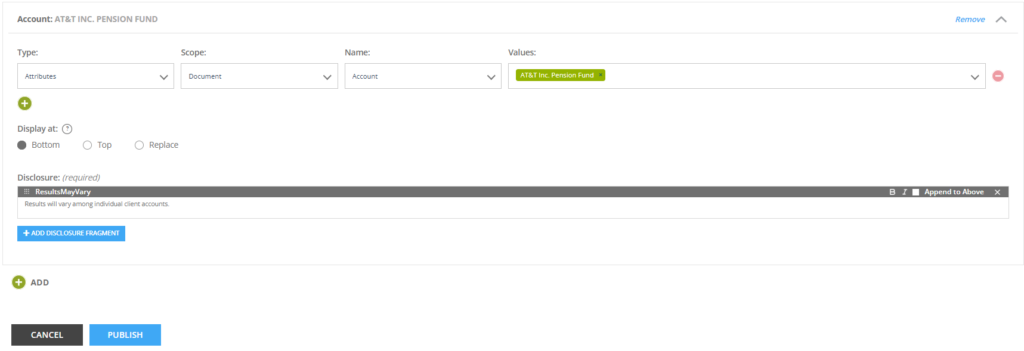
Once all conditional disclosure configuration is complete, users must click Publish to make the conditional disclosure available for use in templates and content generation. Publishing saves all configuration settings and activates the conditional logic for use across the Assette platform.
After publishing, the conditional disclosure block can be incorporated into Smart Docs, Smart Pages, and other content templates using the standard disclosure insertion methods. The conditional logic will be evaluated automatically during content generation, and the appropriate disclosure content will be displayed based on the configured conditions and the specific context of each document or page.
Best Practices and Considerations #
When creating Conditional Disclosures, users should consider the distinction between disclosures and footnotes for their content. Disclosures are designed for general informational content that applies broadly to the document or section, such as standard compliance statements like “past performance does not guarantee future results.” For specific clarifications related to individual tables, charts, or data points, users should create footnotes using the footnote functionality in Developer Tools rather than disclosures.
Conditional Disclosures work most effectively when the conditions are clearly defined and the disclosure content provides meaningful value for the specific context. Users should test conditional disclosure configurations across different scenarios to ensure that the logic operates as intended and that the appropriate content appears under the expected conditions.
The flexibility of the Conditional Disclosure system allows for both simple and complex disclosure scenarios. Organizations should develop consistent approaches to condition naming and disclosure content to maintain clarity and manageability as the number of conditional disclosures grows over time.