
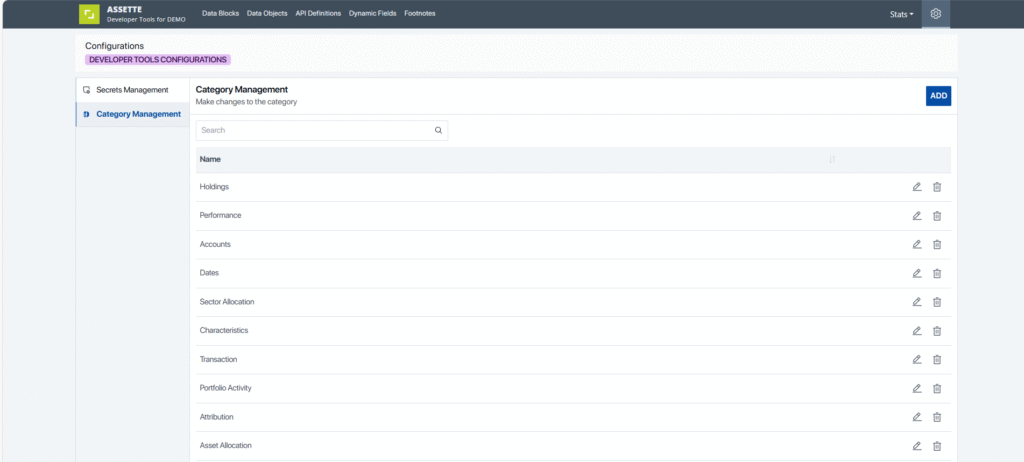
The Category Management screen in Assette Developer Tools provides administrators with a controlled way to define and maintain the list of categories used throughout the Developer Tools interface. These categories are primarily used to classify Data Blocks, making it easier for development teams to sort, filter, and locate Data Blocks during daily work. This feature supports a more organized development environment by allowing firms to tailor categorization to their internal structures and workflows.
The Category Management screen is located in Developer Tools > Configurations > Category Management. This screen is accessible only to users who have the admin permissions within Developer Tools.
Purpose of Category Management #
Category Management allows you to define the list of Data Object Categories that appear in several places within Developer Tools, including:
- The Data Object Category field within the Data Block General Info tab.
- The Data Object Category filter in the Data Blocks listing page.
By maintaining a clean and intuitive set of categories, you improve the clarity and usability of the entire Data Block management process. This ensures that Data Blocks are grouped logically, aligned with your development or data structures, and easier to retrieve when needed.
Using the Category Management Screen #
When accessing Category Management, you will see a tabular list of all existing categories. Each row displays the category name along with action icons for editing or deleting the category. A search field at the top of the screen allows you to filter the list as it grows over time.
Adding a New Category #
To add a new category:
- Click the Add button at the top of the screen.
- Enter the category name in the prompt.
- Confirm to save.
Once added, the new category immediately becomes available for use in the Data Block editor and related filters.
Editing an Existing Category #
Existing categories may be renamed when organizational terminology or structural changes occur. To edit:
- Locate the category in the list.
- Click the pencil icon next to the category name.
- In the Edit Category dialog, update the name as needed.
- Click Update to save your changes.
All references to this category across Developer Tools will automatically reflect the new name.
Deleting a Category #
When a category is no longer relevant, you may remove it. Deleting a category permanently removes it from Developer Tools.
To delete:
- Click the trashcan icon next to the category.
- Confirm the deletion in the confirmation dialog.
Because categories may be referenced in Data Block definitions, it is recommended to confirm that the category is no longer actively in use before deletion.